
Staging Panel
The staging panel is your command center for preparing and creating commits.
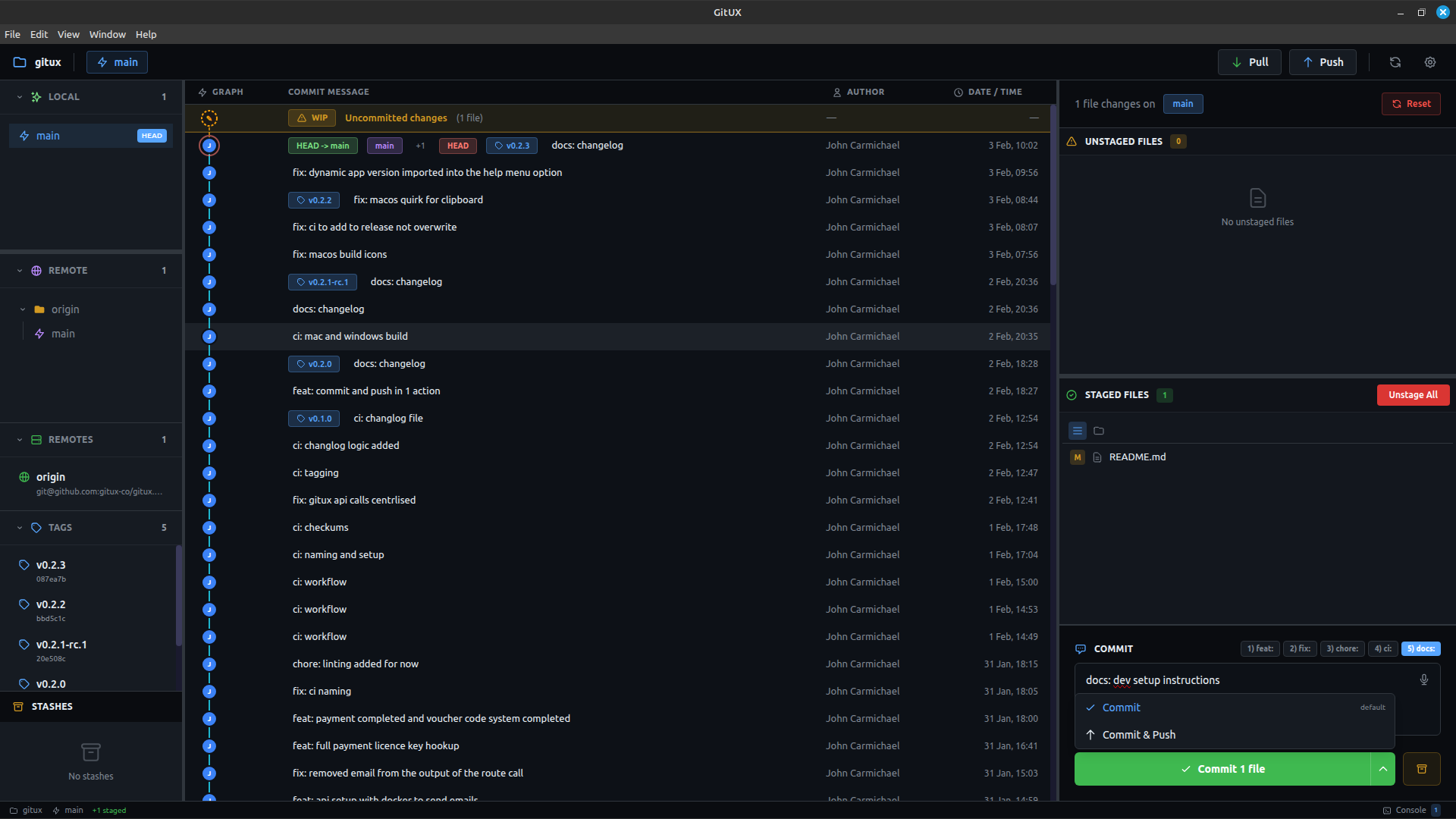
Panel Layout
The staging panel (right side) contains three sections:
┌─────────────────────────────┐
│ 3 file changes on [main]    │  ← Header
├─────────────────────────────┤
│ ⚠ UNSTAGED FILES (2)        │
│   [Stage All]               │
│   ├─ modified.js            │
│   └─ new-file.ts            │
├─────────────────────────────┤
│ ✓ STAGED FILES (1)          │
│   [Unstage All]             │
│   └─ ready-file.js          │
├─────────────────────────────┤
│ 💬 COMMIT                   │
│ [feat] [fix] [enh] [docs]   │
│ ┌─────────────────────┐     │
│ │ Type message...   🎤│     │
│ └─────────────────────┘     │
│ [Commit 1 file] [Stash]     │
└─────────────────────────────┘
Unstaged Files
Files you've modified but haven't added to the next commit.
File Actions
- Click file — View diff
- Click + — Stage individual file
- Stage All — Stage everything (
Ctrl+S)
File Status Icons
- 🟡 Modified
- 🟢 Added (new file)
- 🔴 Deleted
Staged Files
Files ready to be included in your next commit.
File Actions
- Click file — View diff
- Click - — Unstage individual file
- Unstage All — Move all back to unstaged
Commit Section
Prefix Buttons
Quick-add conventional commit prefixes:
| Button | Adds | Shortcut |
|---|---|---|
| feat | feat: | Alt+1 |
| fix | fix: | Alt+2 |
| enh | enh: | Alt+3 |
| docs | docs: | Alt+4 |
Click to toggle. The prefix appears at the start of your message.
Message Input
- Multi-line textarea
- Focus with
Alt+C - Commit with
Ctrl+Enter
Voice Input
- Click 🎤 or press
Alt+M - Speak your message
- Click again to stop and transcribe
Commit Button
- Shows file count: "Commit 3 files"
- Disabled if no staged files or empty message
- Click or
Ctrl+Enterto commit
Stash Button
- Saves all changes (staged + unstaged)
- Opens modal for stash message
- Useful for quick context switches
Resizable Sections
Drag the divider between unstaged and staged sections to resize them. Useful when you have many files in one section.
Auto-Refresh
The staging panel updates automatically when:
- You modify files in your editor
- External Git commands change status
- You stage/unstage files
Workflow Example
1. Edit files in your editor
2. Files appear in "Unstaged"
3. Click files to review changes
4. Stage files you want to commit
5. Click prefix button (e.g., feat)
6. Type or dictate message
7. Click Commit (or Ctrl+Enter)
8. Push to remote (Ctrl+P)
Keyboard Shortcuts
| Shortcut | Action |
|---|---|
Ctrl+S | Stage all unstaged files |
Alt+C | Focus commit message |
Alt+M | Toggle voice input |
Alt+1-4 | Toggle commit prefixes |
Ctrl+Enter | Commit |
Tips
Review Before Staging
Always click files to see what changed before staging.
Atomic Commits
Stage related changes together. Unrelated changes should be separate commits.
Meaningful Messages
Use prefixes consistently. Write clear, descriptive messages.
Don't Forget to Push
After committing, push to share your changes (Ctrl+P).
Related
- Staging & Committing Guide — Detailed workflow
- Voice Commands — Using voice input
- Keyboard Shortcuts — All shortcuts