
Diff Viewer
View and understand file changes with Gitux's powerful diff viewer.
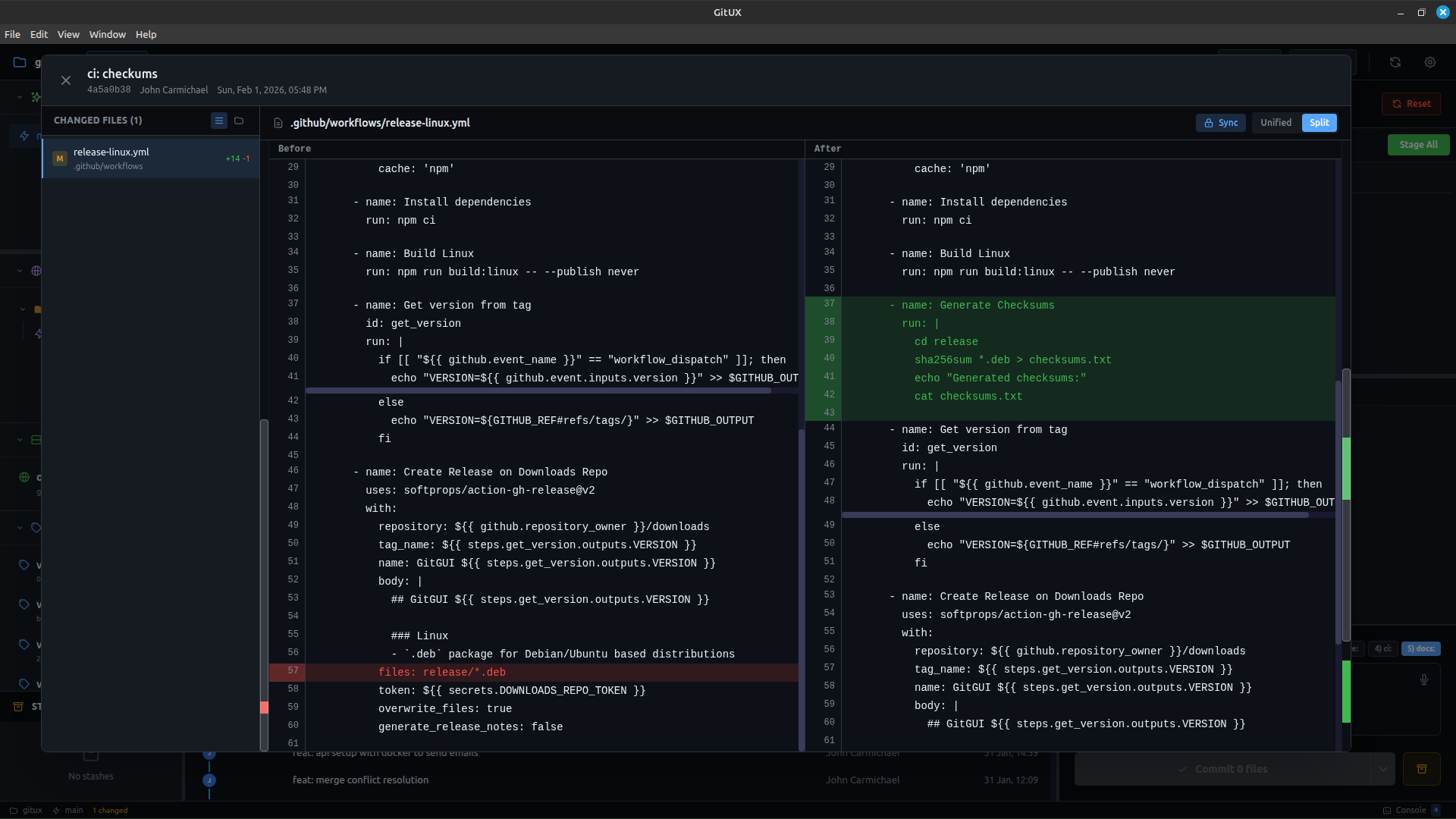
Opening Diffs
From Staging Panel
Click any file in the unstaged or staged sections.
From Commit Details
Click a commit, then click any file in the changed files list.
View Modes
Unified View
Traditional diff format with changes inline:
  context line (unchanged)
- removed line (red background)
+ added line (green background)
  context line (unchanged)
Best for:
- Quick scanning
- Small changes
- Familiar diff format
Split View
Side-by-side comparison:
| Original (Left) | Modified (Right) |
|---|---|
| Old code | New code |
| Deletions highlighted | Additions highlighted |
Best for:
- Large refactors
- Comparing structure
- Understanding rewrites
Toggle between views with the Unified / Split buttons.
Diff Features
Line Numbers
Both views show line numbers:
- Unified: Old line | New line columns
- Split: Each side has its own numbers
Syntax Highlighting
Code is colored based on file type:
- Keywords, strings, comments highlighted
- Makes code easier to read
Change Highlighting
- Green background — Added lines
- Red background — Removed lines
- No background — Context (unchanged)
Minimap
A vertical bar showing the entire file:
- Green marks = additions
- Red marks = deletions
- Click to jump to that section
- See change distribution at a glance
Scroll Sync (Split View)
In split view, both sides scroll together by default.
Toggle with the Sync / Free button:
- Sync — Scroll together
- Free — Scroll independently
Header Information
The diff header shows:
- File name and path
- Status badge — Staged or Unstaged
- View toggle — Unified / Split
- Action button — Stage or Unstage
Actions
Stage/Unstage
Click Stage File or Unstage File directly from the diff viewer.
Close
- Click the X button
- Press
Escape
Understanding Diffs
Hunk Headers
@@ -10,5 +10,7 @@Means: Starting at line 10, showing 5 old lines becoming 7 new lines.
Context Lines
Unchanged lines around changes help you understand location.
Binary Files
Images and other binary files show "Binary file" instead of a diff.
File Statuses
| Status | Badge | Meaning |
|---|---|---|
| Modified | M | Content changed |
| Added | A | New file |
| Deleted | D | File removed |
| Renamed | R | File moved/renamed |
| Copied | C | File duplicated |
Performance
Large diffs are handled efficiently:
- Virtual rendering for long files
- Smooth scrolling
- Minimap for navigation
Tips
Use the Minimap
For large files, the minimap shows where changes are concentrated.
Toggle Views
Switch between unified and split to get different perspectives.
Check Context
Look at surrounding code to understand the impact of changes.
Stage from Diff
You can stage/unstage directly without closing the diff viewer.
Keyboard Shortcuts
| Shortcut | Action |
|---|---|
Escape | Close diff viewer |
| Click file | Open that file's diff |
Related
- Viewing Diffs Guide — Detailed usage
- Staging Panel — Managing files
- Commit Graph — Viewing history