
Staging & Committing
Learn how to stage changes and create commits in Gitux.
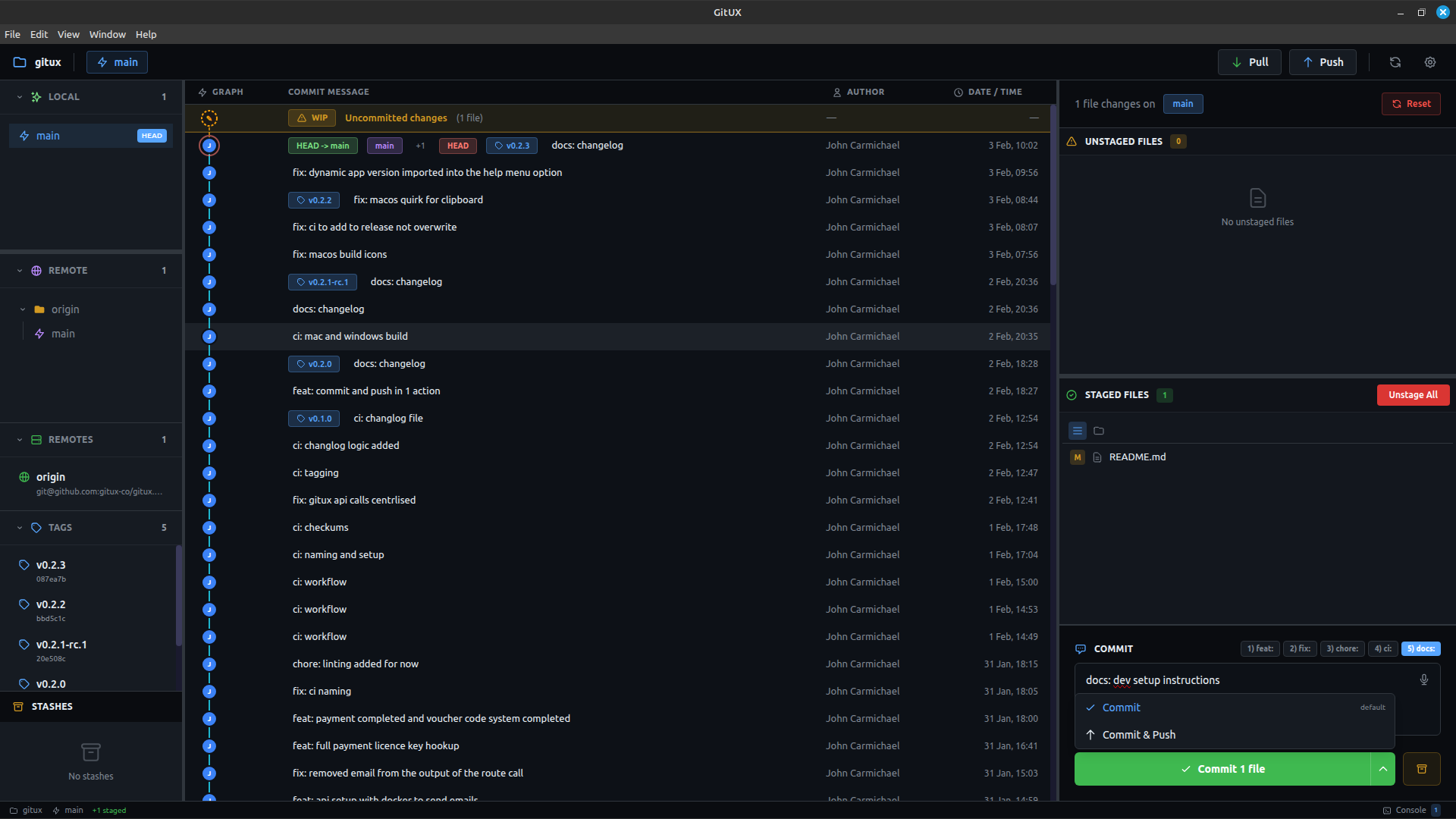
The Staging Panel
The staging panel on the right side of Gitux shows:
- Unstaged Files — Changes not yet added to the next commit
- Staged Files — Changes ready to be committed
- Commit Area — Write your message and commit
Staging Files
Stage Individual Files
Click the + button next to any unstaged file to stage it.
Stage All Files
Click Stage All or press Ctrl+S to stage all unstaged files at once.
View File Diff Before Staging
Click on any file (staged or unstaged) to open the diff viewer and see exactly what changed.
Unstaging Files
Unstage Individual Files
Click the - button next to any staged file to unstage it.
Unstage All Files
Click Unstage All to move all staged files back to unstaged.
Writing Commit Messages
The Commit Input
The commit message textarea supports:
- Multi-line messages (first line is the subject)
- Placeholder text with hints
- Focus with
Alt+C
Commit Prefixes
Gitux includes built-in commit prefix buttons for conventional commits:
| Button | Prefix | Use For |
|---|---|---|
feat | feat: | New features |
fix | fix: | Bug fixes |
enh | enh: | Enhancements |
docs | docs: | Documentation |
Keyboard shortcuts:
Alt+1— Togglefeat:prefixAlt+2— Togglefix:prefixAlt+3— Toggleenh:prefixAlt+4— Toggledocs:prefix
Click a prefix button to add it to your message. Click again to remove it.
Voice Input
Click the microphone button or press Alt+M to dictate your commit message:
- Click the mic button (or
Alt+M) - First time: Wait for the AI model to load (~30 seconds)
- Speak your commit message
- Click again to stop recording
- Your speech is transcribed and added to the message
Voice Input is Private
The Whisper AI model runs entirely on your machine. No audio is ever sent to any server.
Making a Commit
Requirements
To commit, you need:
- At least one staged file
- A non-empty commit message
Commit Actions
Click the Commit button or press Ctrl+Enter (when focused on the message input) to commit.
The button shows how many files will be committed: "Commit 3 files"
After Committing
- The commit message clears
- Staged files move to the commit history
- The commit graph updates with your new commit
Workflow Example
- Make changes to your files in your editor
- Gitux automatically detects the changes (unstaged files appear)
- Review changes by clicking files to see diffs
- Stage the files you want to commit (
Ctrl+Sfor all) - Select a prefix (
Alt+1for feat) - Type or dictate your message
- Commit (
Ctrl+Enter) - Push to remote (
Ctrl+P)
Tips for Good Commits
Atomic Commits
Commit related changes together. If you fixed a bug AND added a feature, make two separate commits.
Clear Messages
- First line: Brief summary (50 chars or less)
- Use prefixes for consistency
- Be specific: "fix: resolve login timeout" not "fix bug"
Review Before Committing
Always click through your staged files to verify you're committing what you intend.
Keyboard Shortcuts Summary
| Shortcut | Action |
|---|---|
Ctrl+S | Stage all unstaged files |
Alt+C | Focus commit message |
Alt+M | Toggle voice input |
Alt+1 | Toggle feat: prefix |
Alt+2 | Toggle fix: prefix |
Alt+3 | Toggle enh: prefix |
Alt+4 | Toggle docs: prefix |
Ctrl+Enter | Commit (when in message input) |
Ctrl+P | Push to remote |
Next Steps
- Branches & Merging — Work with multiple branches
- Voice Commands — Master voice input