
Visual Commit Graph
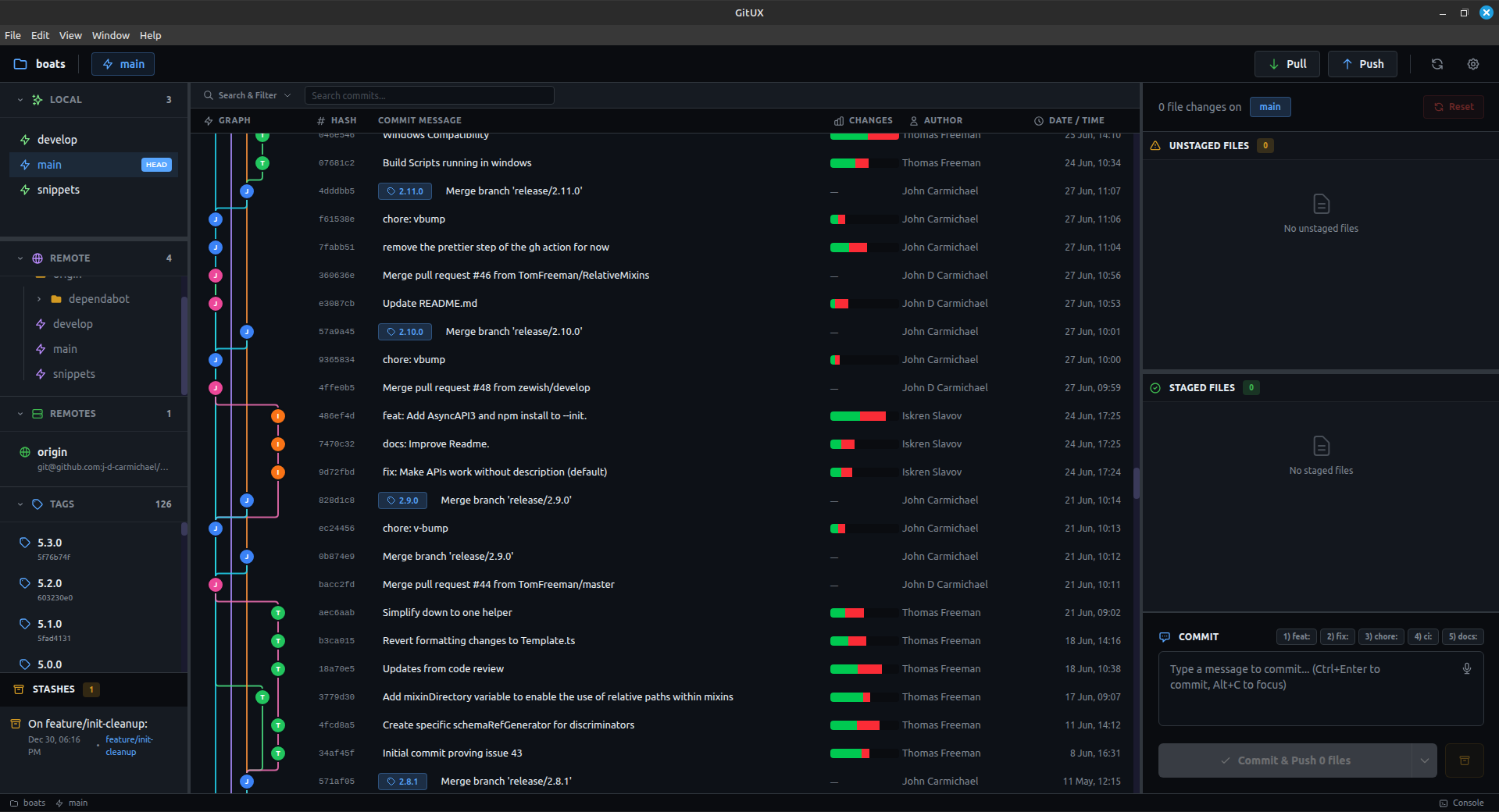
The commit graph is Gitux's centerpiece — a visual representation of your entire Git history.
What You See
The commit graph displays:
- Commit dots — Each commit as a point on the graph
- Branch lines — Colored paths connecting related commits
- Branch labels — Names showing where branches point
- Merge points — Where branches come together
- HEAD indicator — Your current position
Graph Layout
┌────────┬─────────────────────────┬──────────┬─────────────┐
│ Graph  │ Commit Message          │ Author   │ Date/Time   │
├────────┼─────────────────────────┼──────────┼─────────────┤
│   ●    │ feat: add user auth     │ John     │ 2 hours ago │
│   │    │                         │          │             │
│   ●    │ fix: resolve timeout    │ Jane     │ 5 hours ago │
│  /│    │                         │          │             │
│ ● │    │ feat: new dashboard     │ John     │ Yesterday   │
│  \│    │                         │          │             │
│   ●    │ Initial commit          │ John     │ Last week   │
└────────┴─────────────────────────┴──────────┴─────────────┘
Color Coding
Each branch gets a distinct color:
- Lines of the same color belong to the same branch
- Merge commits show multiple colors converging
- The current branch is highlighted
Interacting with Commits
Single Click
Click a commit to:
- Open the commit details panel
- See all files changed in that commit
- View diffs for any file
Scroll for More
The graph loads commits incrementally:
- Initial load shows recent commits
- Scroll down to load older history
- "End of commit history" appears at the bottom
Uncommitted Changes
If you have uncommitted changes, they appear at the top:
- Shows count of staged and unstaged files
- Visually distinct from actual commits
Commit Details
When you click a commit, you see:
File List
- All files modified in the commit
- Status badges (M, A, D, R, C)
- Addition/deletion counts
- Toggle between list and folder view
Diff Viewer
- Click any file to see its changes
- Unified or split view
- Syntax highlighting
- Minimap navigation
Context Menu
Right-click a commit for options:
- Reset branch to this commit
- Copy commit hash
- View full details
Performance
Gitux handles large repositories efficiently:
- Lazy loading — Only loads visible commits
- Virtual scrolling — Smooth scrolling through thousands of commits
- Incremental updates — Refreshes only what changed
Branch Visualization
Linear History
Simple projects show a straight line of commits.
Feature Branches
Branches appear as lines diverging and merging back.
Complex Histories
Even complicated merge patterns are rendered clearly with distinct colors.
Search & Filter
A powerful Search & Filter bar sits above the graph:
Ctrl+Fto toggle the search panel- Search commit messages and hashes
- Filter by author to see one person's work
- Date range to narrow to a time window
- File search to find any file and jump to its history
- File browser to explore the repo tree visually
When filters are active, the graph shows only matching commits with a count: "Showing 12 of 847 commits".
Tips
Find a Commit
Use the search bar (Ctrl+F) to search by message or hash. Or click a branch in the sidebar to scroll to its latest commit.
Understand Merges
Follow the colored lines to see which branches were merged and when.
Track Authors
The author column helps identify who made each change.
Related
- Staging & Committing — Create new commits
- Branches & Merging — Work with branches
- Viewing Diffs — Understand file changes