
File History
Track the complete history of any file in your repository.
Opening File History
From the Search Bar (Fastest)
- Press
Ctrl+Fto open the search & filter panel - Type a filename in the file search field (right side)
- Click a matching result to open its history instantly
From the File Browser
- Click the folder icon (📁) in the file search field
- Navigate the repository tree
- Click any file to open its history
From Staging Panel
- Right-click any file (staged or unstaged)
- Select File history
From Commit Details
- Click a commit to see its files
- Right-click any file
- Select File history
The File History Panel
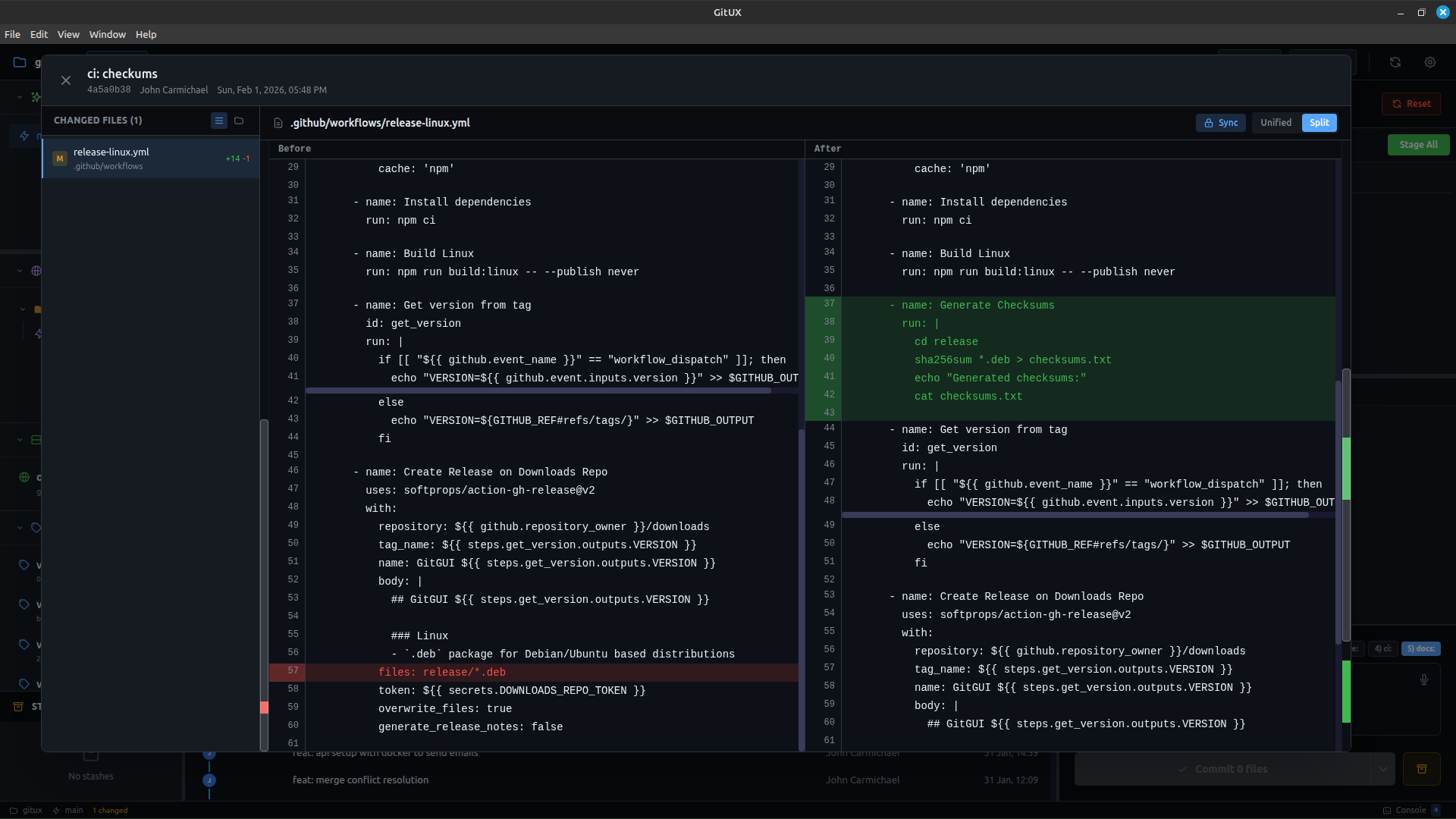
The file history panel shows:
- File path at the top
- List of commits that modified this file
- Commit details for each entry
Each commit entry displays:
- Commit message
- Author
- Date
- Short hash
Viewing Changes
Click any commit in the file history to see:
- What changed in that specific commit
- The diff for just that file
- Before/after comparison
Use Cases
Understanding Code Evolution
See how a function or component changed over time:
- Open file history for the file
- Scroll through commits
- Click each to see incremental changes
Finding When a Bug Was Introduced
- Open file history for the buggy file
- Look for suspicious changes
- Identify the commit that introduced the issue
Tracking Authorship
See who made changes to a file and when:
- Each commit shows the author
- Useful for code review and questions
Recovering Old Code
If you need to see how code looked before:
- Find the relevant commit in history
- View the file at that point
- Copy what you need
Navigating History
Scrolling
- Scroll through the commit list
- Older commits are at the bottom
Clicking Commits
- Click to view that commit's changes
- The diff viewer shows the file's changes
Closing
- Click the X button
- Press Escape
Tips
Start from the Right File
Make sure you're viewing history for the correct file path. Renamed files may have separate histories.
Look at Commit Messages
Good commit messages help you understand why changes were made, not just what changed.
Check Related Files
If a file's history doesn't explain everything, check related files that might have been changed together.
Limitations
Renamed Files
Git tracks renames, but the history view may not follow renames automatically. You might see history only from the rename forward.
Deleted Files
You cannot open file history for deleted files from the UI. Use the command line:
git log --all --full-history -- path/to/deleted/fileLarge Histories
Files with hundreds of commits may take a moment to load.
Next Steps
- Reset & Force Push — Advanced Git operations
- Keyboard Shortcuts — Speed up your workflow