
The Commit Graph
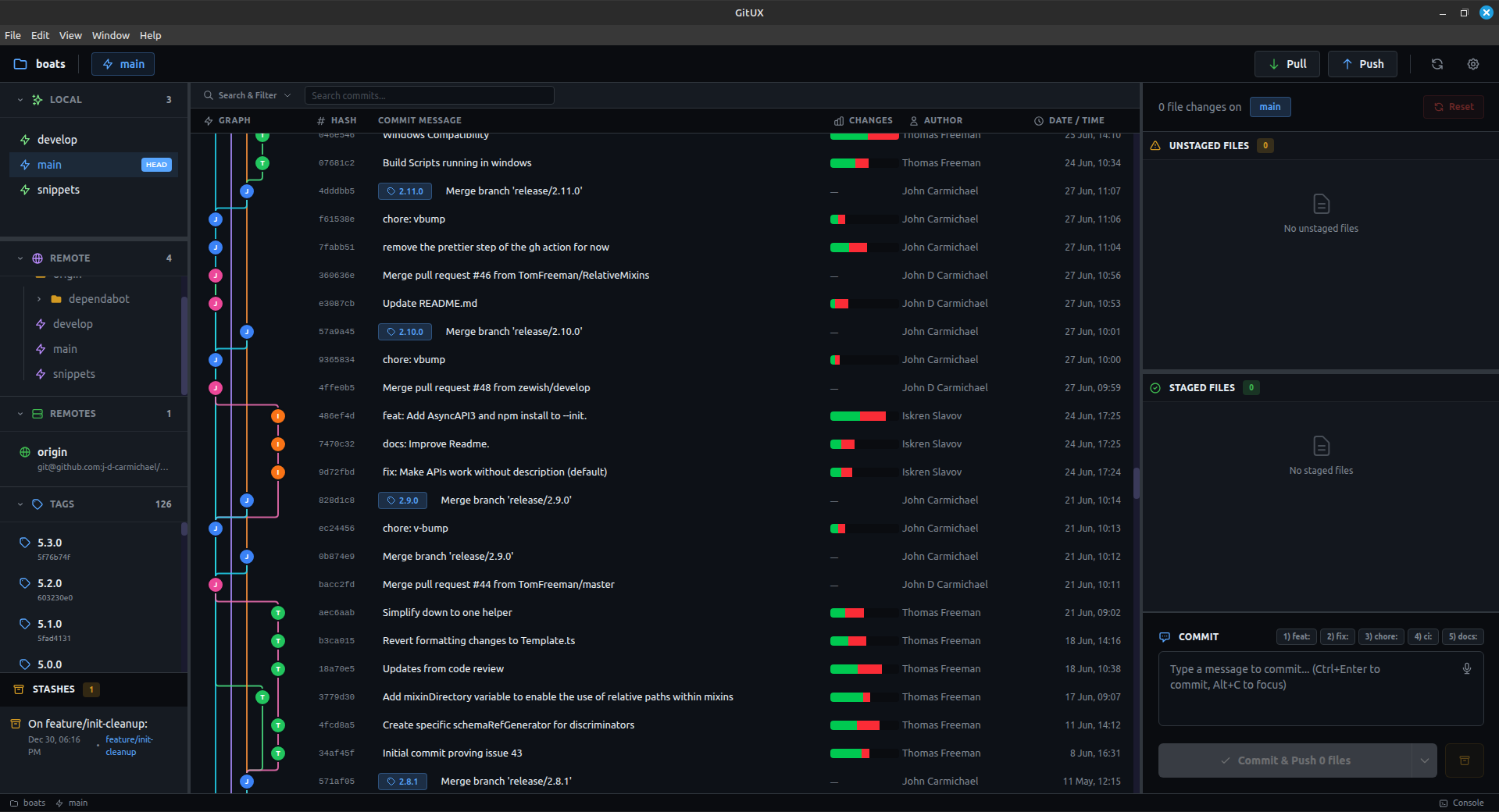
The commit graph is the heart of Gitux — a visual representation of your entire Git history.
Understanding the Graph
The commit graph shows:
- Commits as rows with message, author, and timestamp
- Branch lines as colored paths connecting commits
- Branch labels showing where each branch points
- HEAD indicator showing your current position
Graph    Message              Author       Date
──●───   feat: add login     John Doe     2 hours ago
  │
──●───   fix: typo           Jane Smith   5 hours ago
  │
──●───   Initial commit      John Doe     Yesterday
Reading the Graph
Commit Rows
Each row represents a commit and displays:
- Graph column — Visual branch lines and commit dots
- Message — The commit message (first line)
- Author — Who made the commit
- Date/Time — When the commit was made
Branch Colors
Different branches are shown in different colors:
- Lines connect commits on the same branch
- Merge commits show where branches join
- The current branch is highlighted
Uncommitted Changes
If you have uncommitted changes, they appear at the top of the graph as a special row showing:
- Number of staged files
- Number of unstaged files
Interacting with Commits
Click a Commit
Single-click a commit to:
- View the list of changed files
- See the diff for any file
- View commit details (full message, hash, etc.)
Scroll to Load More
The graph loads commits incrementally for performance. Scroll down to load older commits automatically.
Highlight from Sidebar
Click a branch in the sidebar to scroll the graph to that branch's latest commit.
Commit Details Panel
When you click a commit, the details panel shows:
File List — All files changed in that commit
- Toggle between list view and folder view
- See additions (+) and deletions (-) per file
Diff Viewer — Click a file to see its changes
- Unified or split view
- Syntax highlighting
- Minimap for navigation
File Status Indicators
| Badge | Meaning |
|---|---|
| M | Modified |
| A | Added |
| D | Deleted |
| R | Renamed |
| C | Copied |
Context Menu Actions
Right-click on a commit to access:
- Reset branch to this commit
- Copy commit hash
- View commit in detail
Right-click on a file in the commit details to:
- View file history
Search & Filter
Press Ctrl+F to open the search & filter bar above the graph. You can:
- Search commit messages and hashes by typing
- Filter by author using the dropdown
- Set a date range to narrow results
- Search files by name and open their history directly
- Browse the file tree to explore the repo and view any file's history
See Search & Filter for full details.
Keyboard Navigation
| Shortcut | Action |
|---|---|
Ctrl+F | Toggle search & filter panel |
Escape | Close commit details panel |
Ctrl+R | Refresh the graph |
Performance Tips
For large repositories:
- Gitux loads ~100 commits initially
- Scroll down to load more (infinite scroll)
- The graph remains responsive even with thousands of commits
Visual Elements
Branch Lines
- Straight lines = linear history
- Curved lines = branch divergence/merge
- Multiple colors = multiple active branches
Merge Commits
Merge commits show two parent lines converging, making it easy to see where branches were integrated.
Tags
Tags appear as labels on their associated commits.
Next Steps
- Staging & Committing — Make changes and commit them
- Branches & Merging — Work with branches